 Tipsboard
Stays in VS Code
No second app and no extra tab farm. Run Tipsboard: Open from the Command Palette and work beside your code and docs.
Tipsboard is a personal knowledge workspace: wiki-style [ … ] links, backlinks, tags, Kanban, Canvas, and rich Markdown — all backed by plain .md files you own. Use the same vault folder as the desktop Tipsboard editor if you like. No sign-in. No proprietary database.


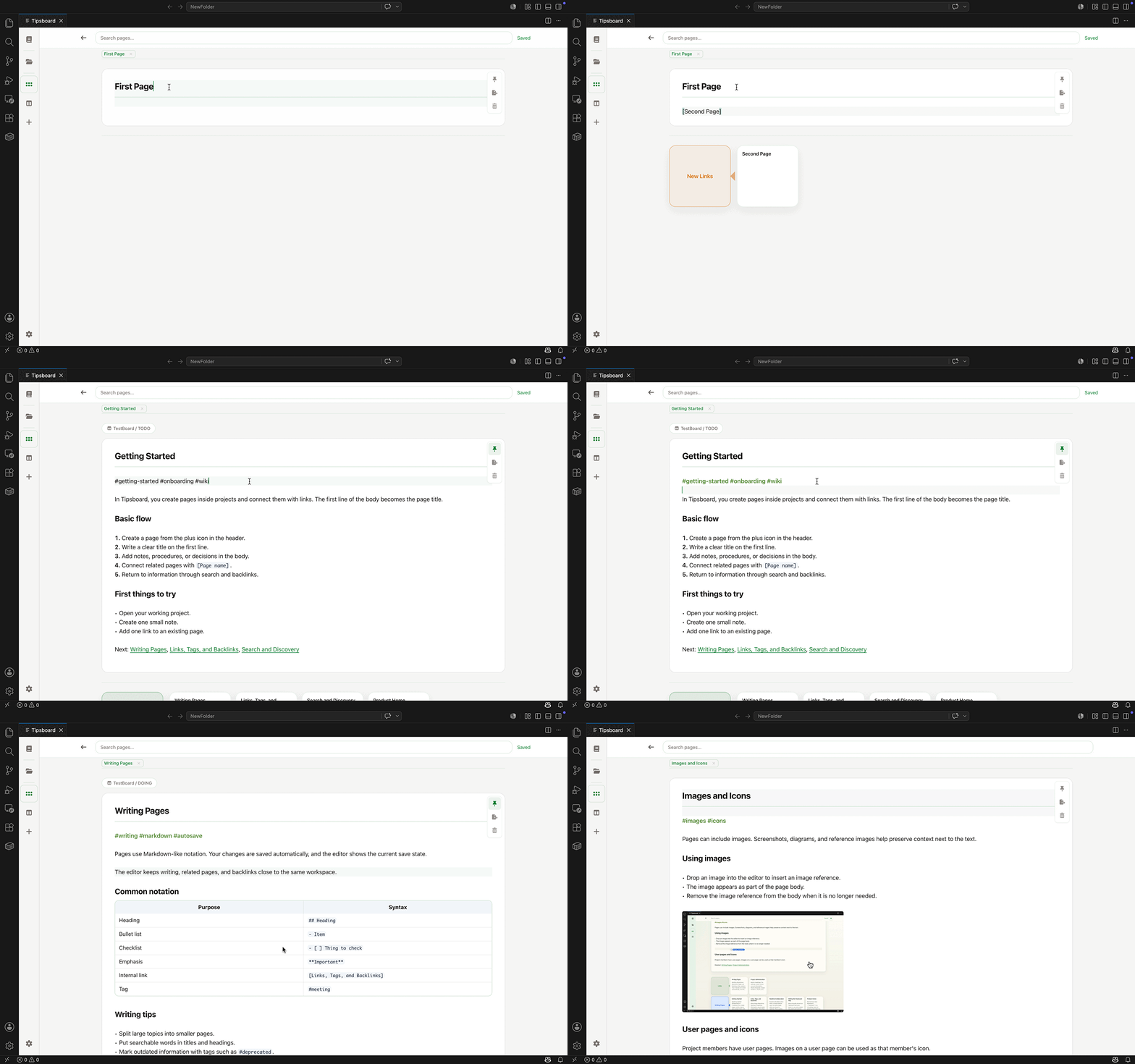
Stay in VS Code, keep your notes as ordinary files, and let Tipsboard surface connections as your library grows.
No second app and no extra tab farm. Run Tipsboard: Open from the Command Palette and work beside your code and docs.
Notes live as Markdown files anywhere under the vault folder, including nested folders, with images and attachments under assets/. Sync with Git, Dropbox, or whatever you trust.
Outgoing links, backlinks, semantic nearby notes, two-hop related notes, suggested new links, isolated-note notices, and optional pins help you navigate a growing library without losing context.
Everything runs against local files — GFM, Mermaid, math, tags, and a tabbed workspace tuned for browsing and writing. File access stays in the extension host; the panel is a focused WebView UI.
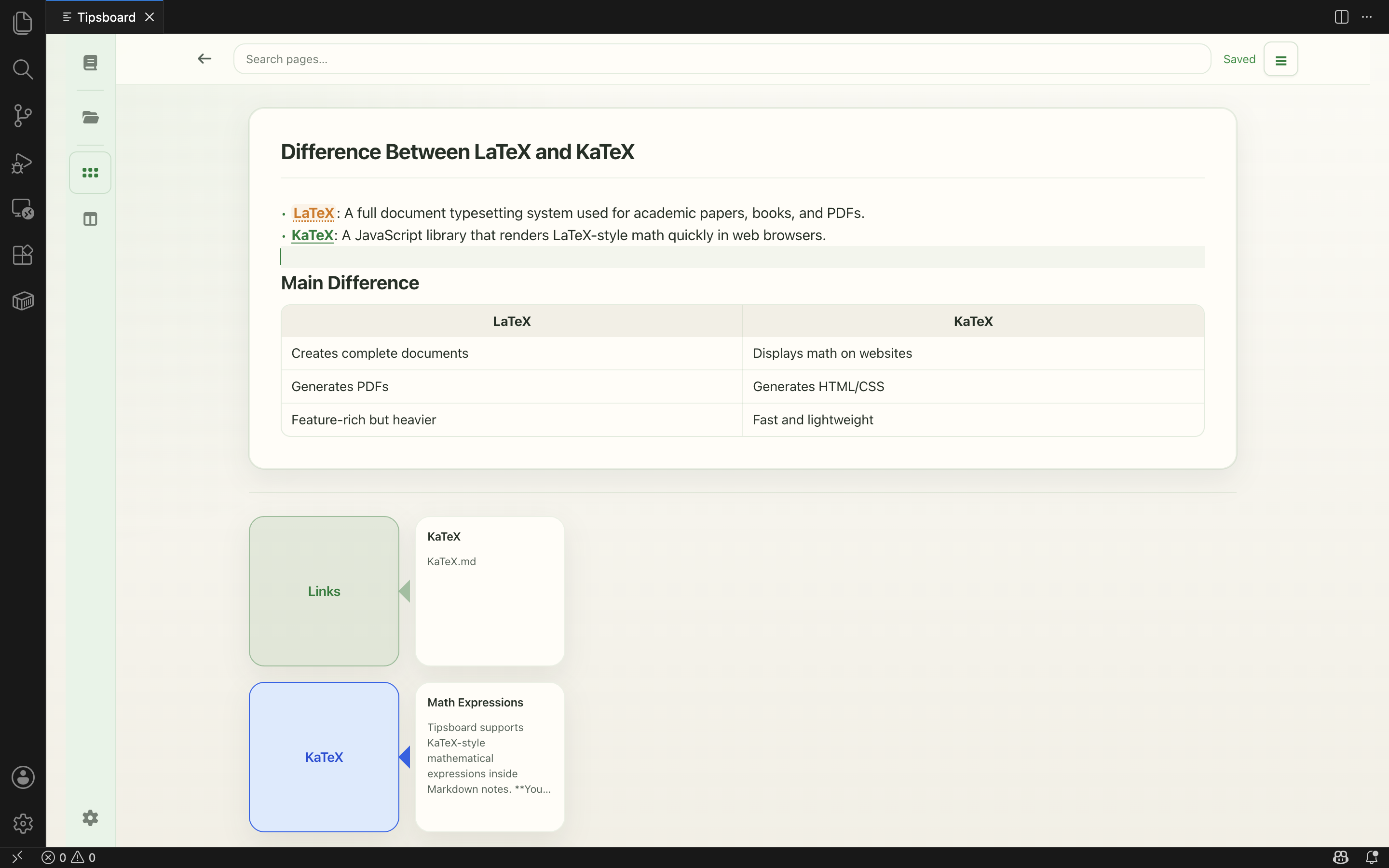
The note index powers backlinks, shared references, related pages, two-hop relationships, and suggested new links as you write. The Related area also surfaces semantic nearby notes with match context and flags pages that have no links yet.
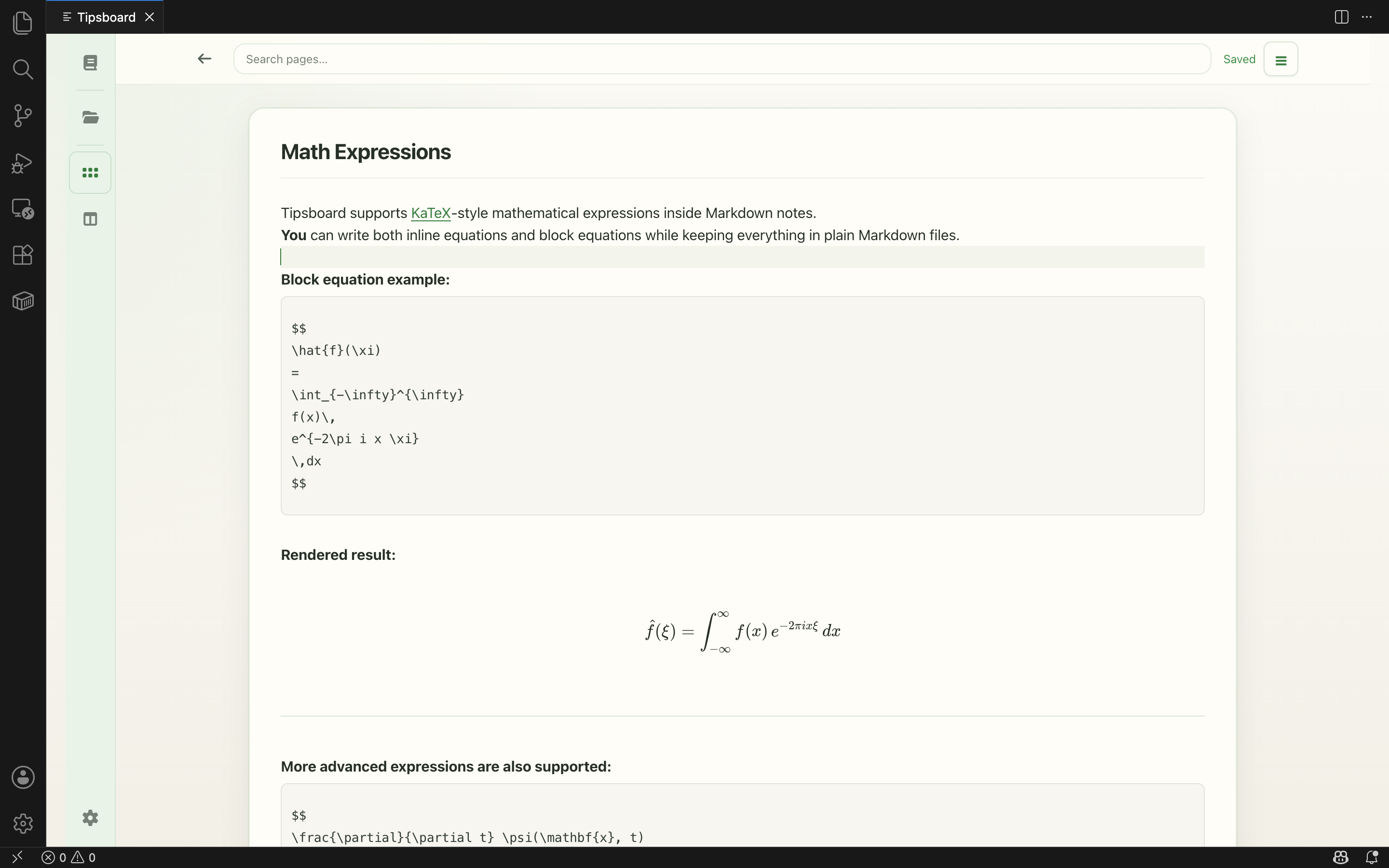
A CodeMirror-based editor with GitHub Flavored Markdown, Mermaid diagrams, KaTeX-style math, tables, tags, and internal link autocomplete.
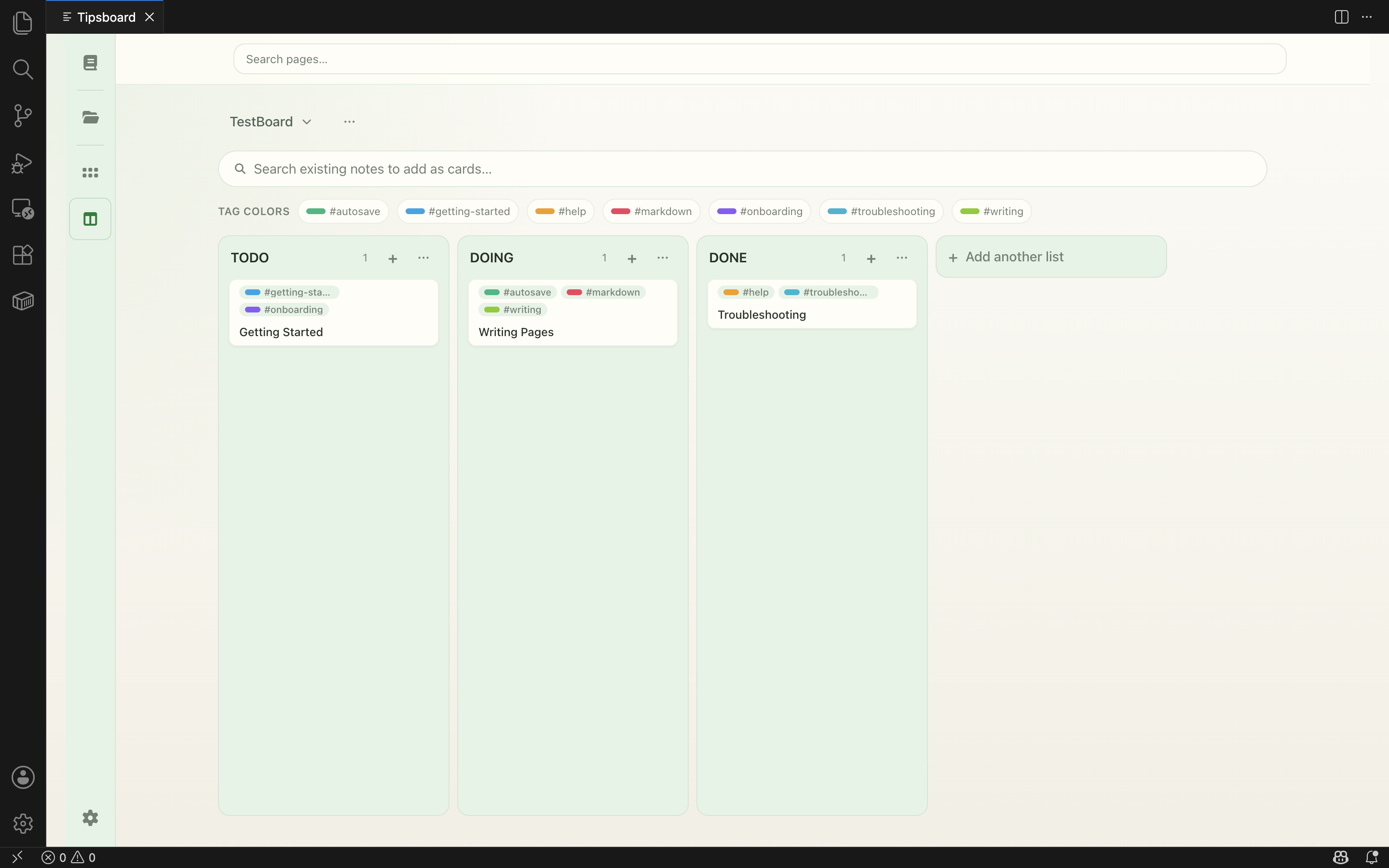
Organize work visually. Board state and pin order live in .tipsboard/kanban.json and .tipsboard/pins.json without mutating note bodies.
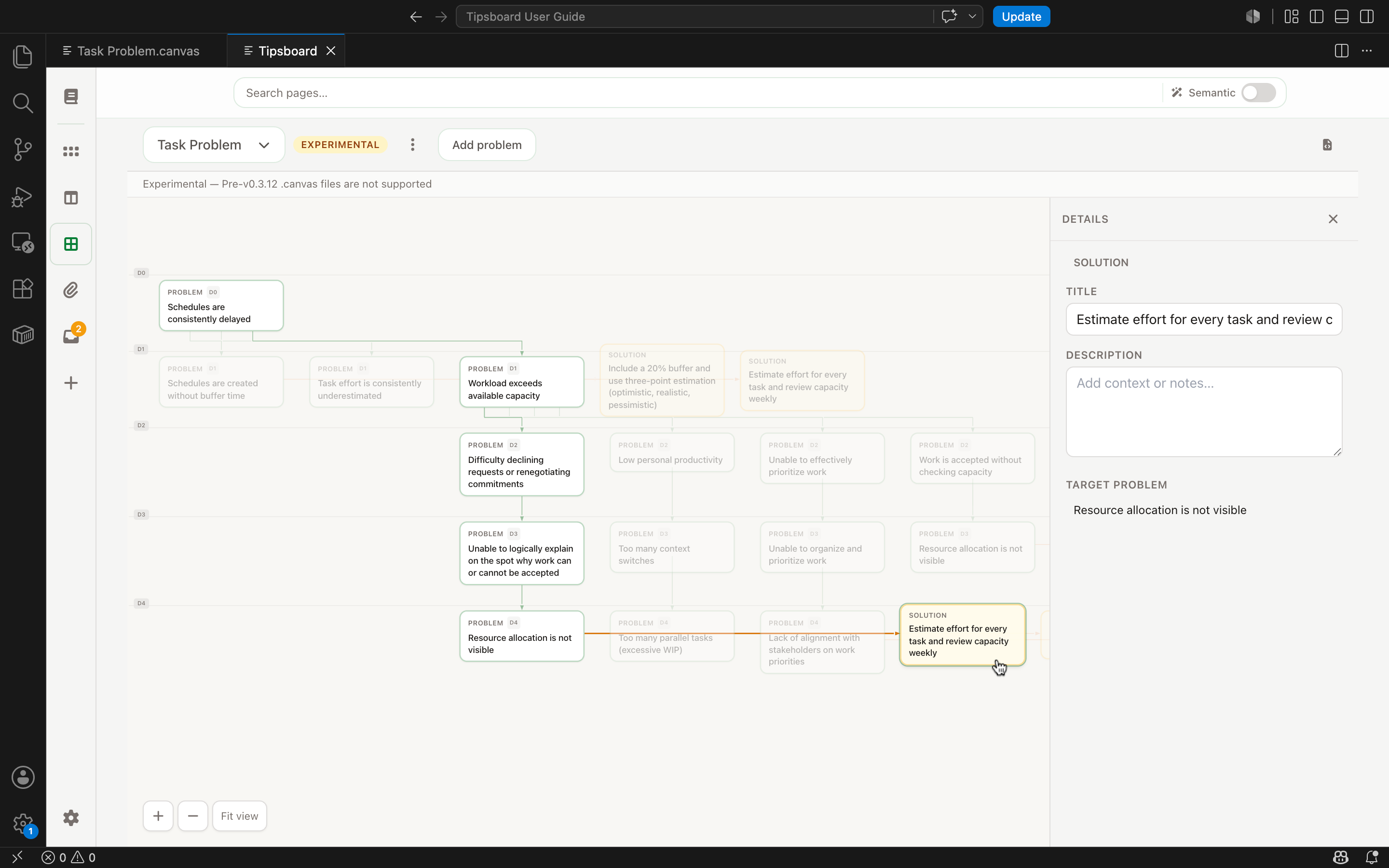
Map problems, deeper causes, and solutions on a graph backed by Mermaid text under .tipsboard/canvas/. Select a node to edit description and status in the detail pane.
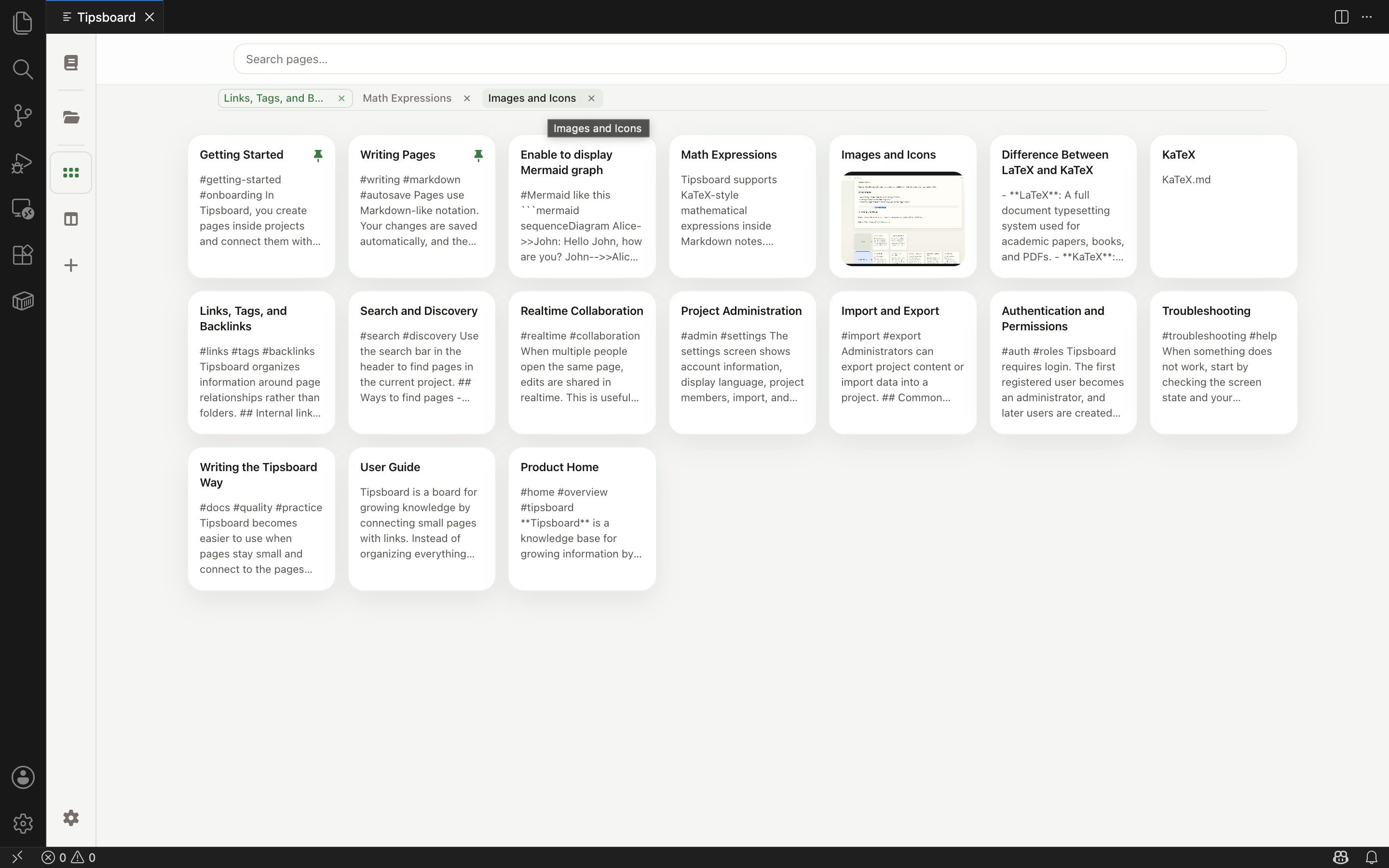
List view with a tab strip for notes and tag searches. Cmd/Ctrl-click opens another tab without the usual discard prompt. NavMemory restores tabs, view mode, Kanban focus, and search when you go back and forward inside the panel.
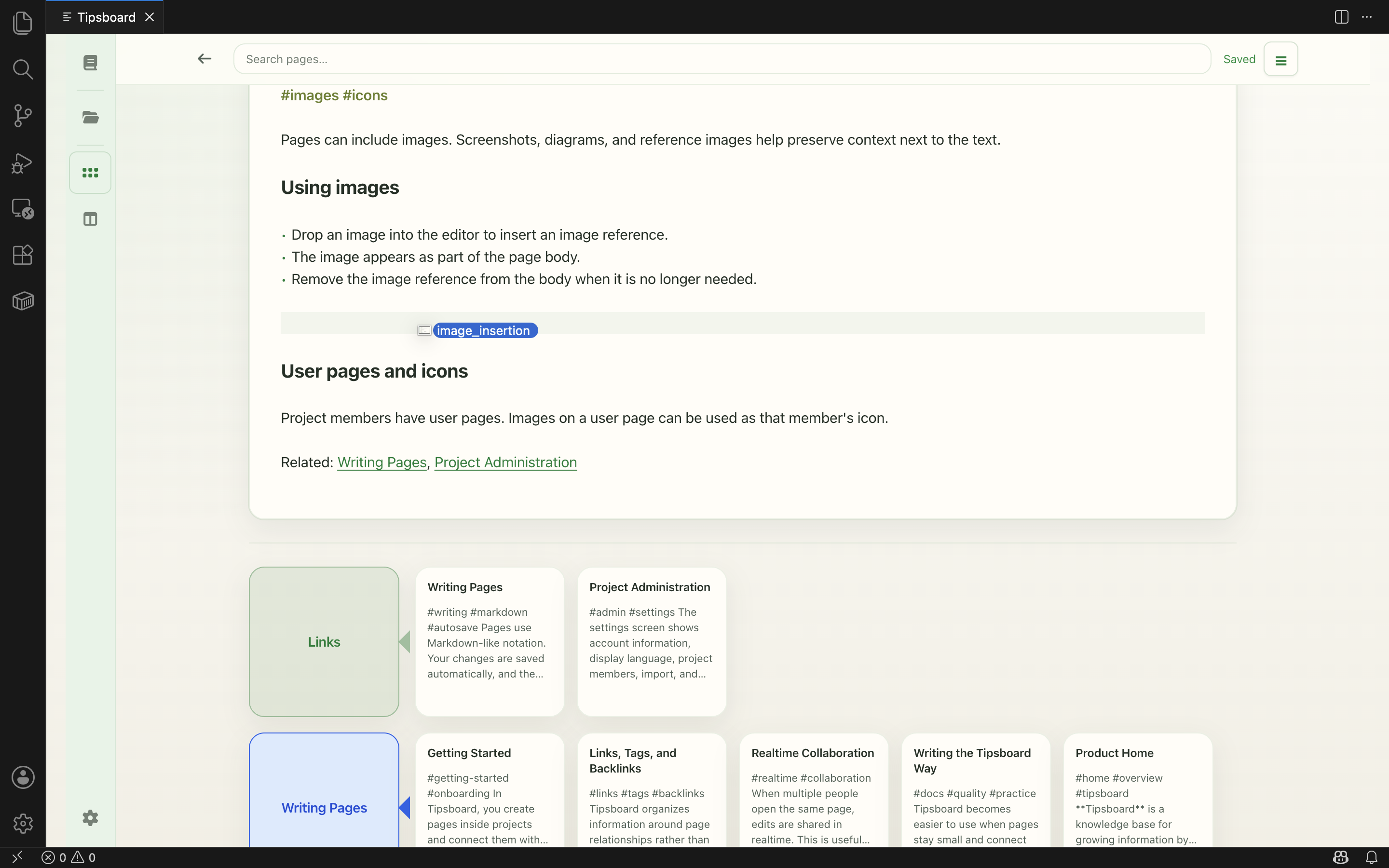
Hold Shift while dropping files to copy images into assets/images/ and other files into assets/files/, with size limits you control.
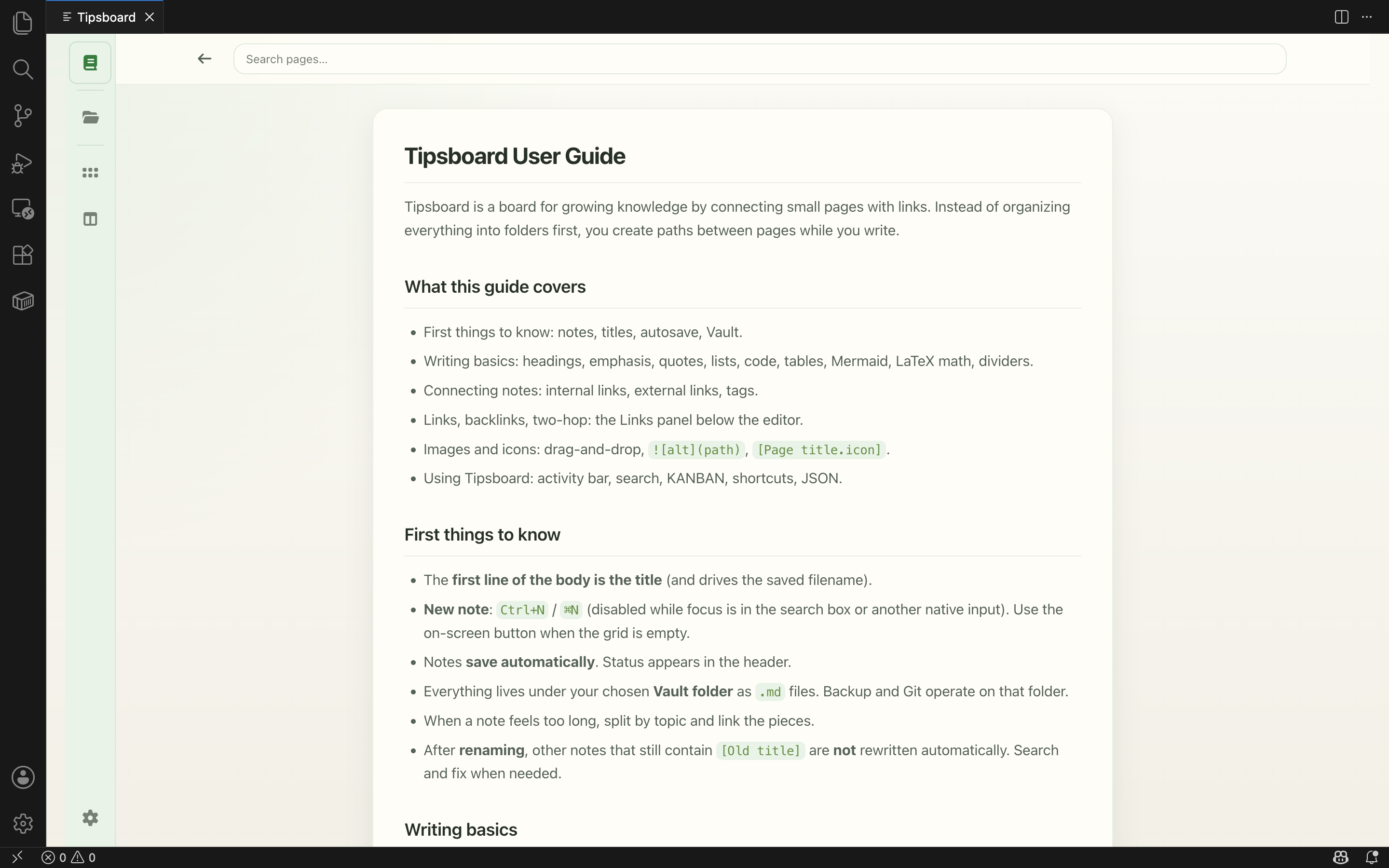
Onboarding, shortcuts, vault layout, and editor behavior — bundled in English and Japanese, from the book icon whenever you need a refresher.
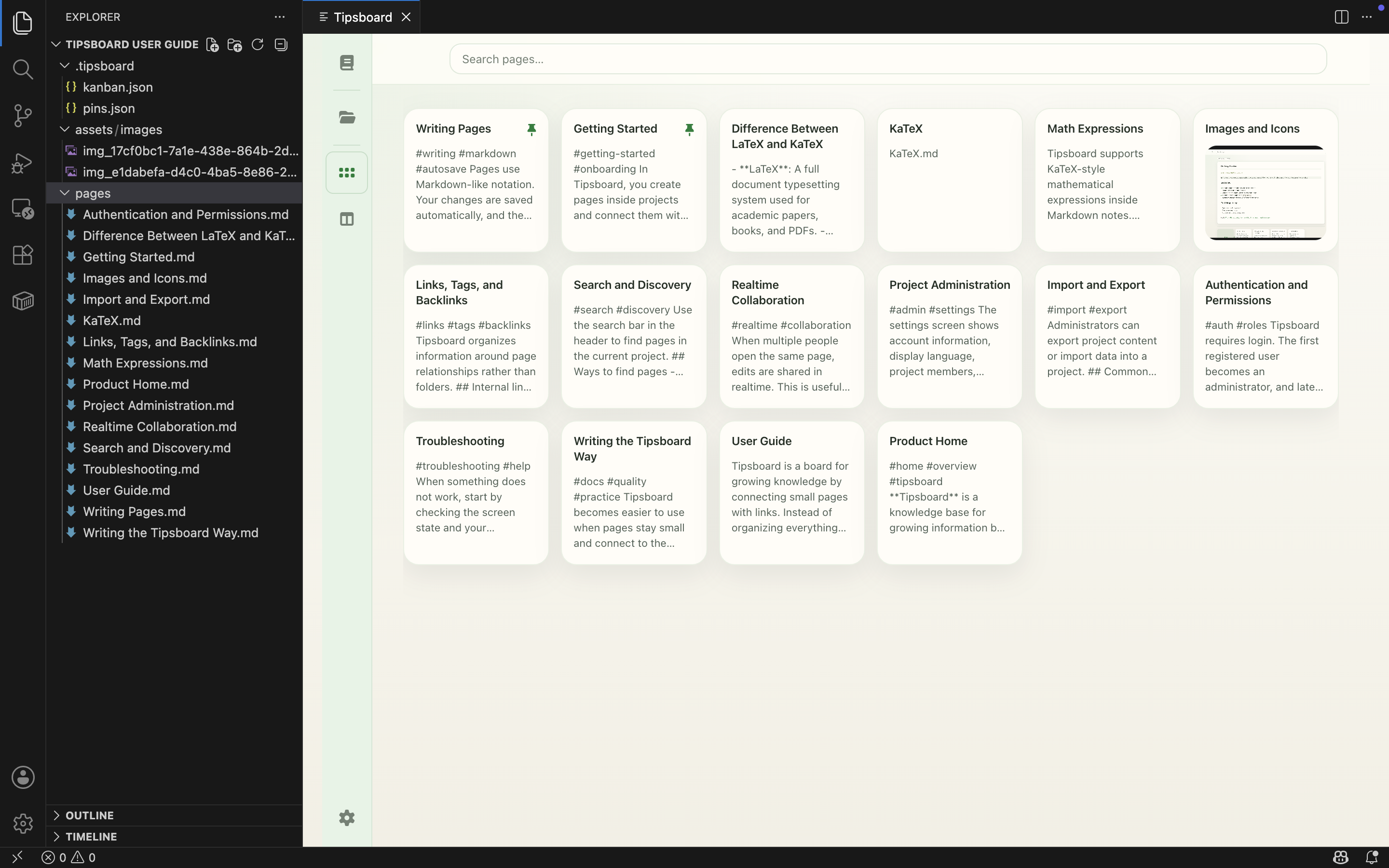
Three steps from an empty folder to a working vault. Details and shortcuts are in the README on GitHub; implementation notes live in SPEC.md.
Search for Tipsboard in the VS Code Extensions view and install from the Marketplace (or use Open VSX). The extension stays idle until you run Tipsboard: Open, so startup stays light.
Open a workspace folder in VS Code. That folder becomes your vault. In multi-root workspaces, set tipsboard-vscode.vaultFolder to the folder name that should be used.
Run from the command palette:
Create or open Markdown files anywhere under the vault folder, link with wiki-style [ … ] brackets, and let Tipsboard build the graph. New notes start in inbox/ so you can file them later. After you save a new title, Tipsboard can optionally offer to align other notes’ bracket labels — see the README.
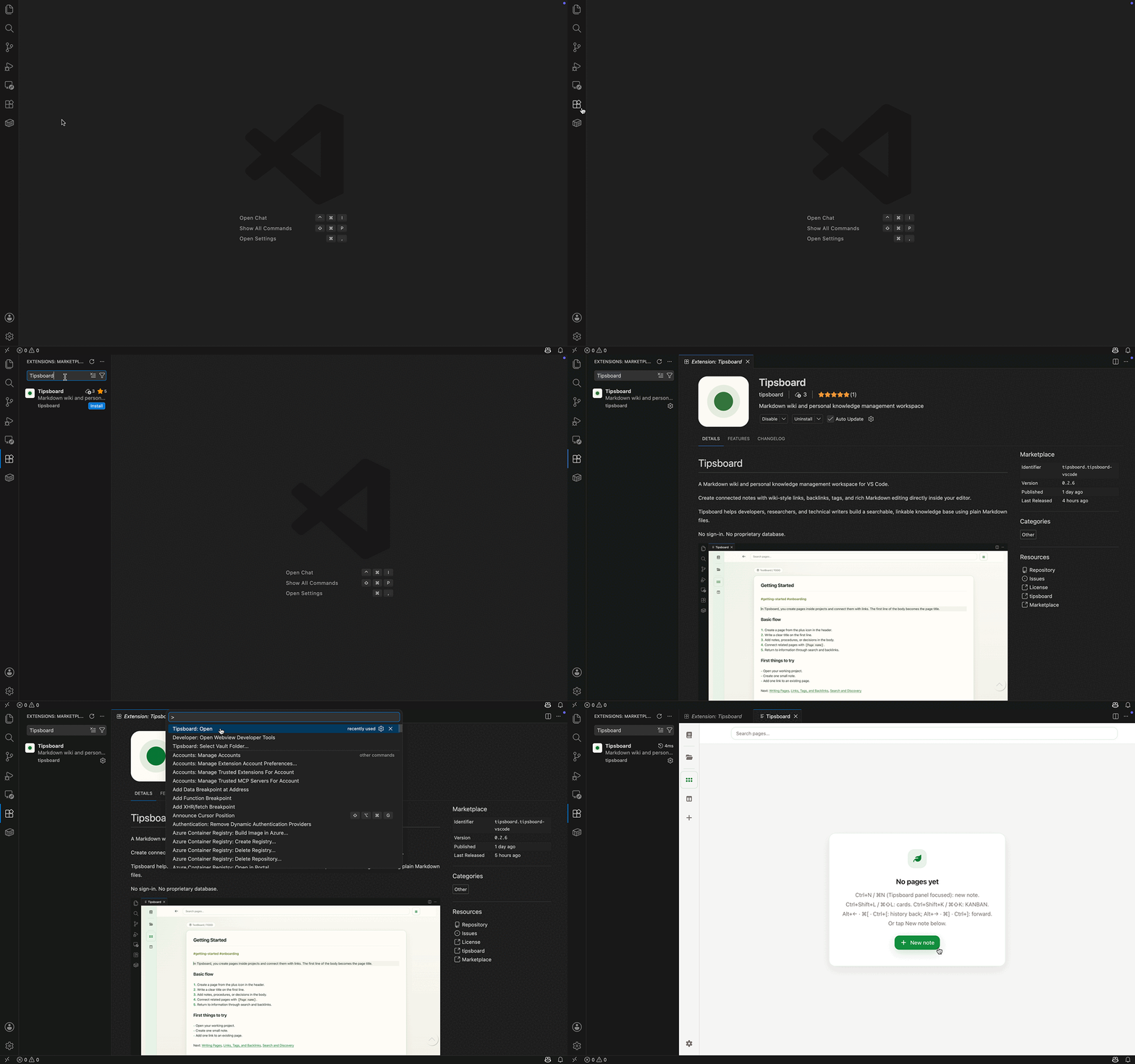
Free and open source (Apache-2.0). Install takes under a minute.